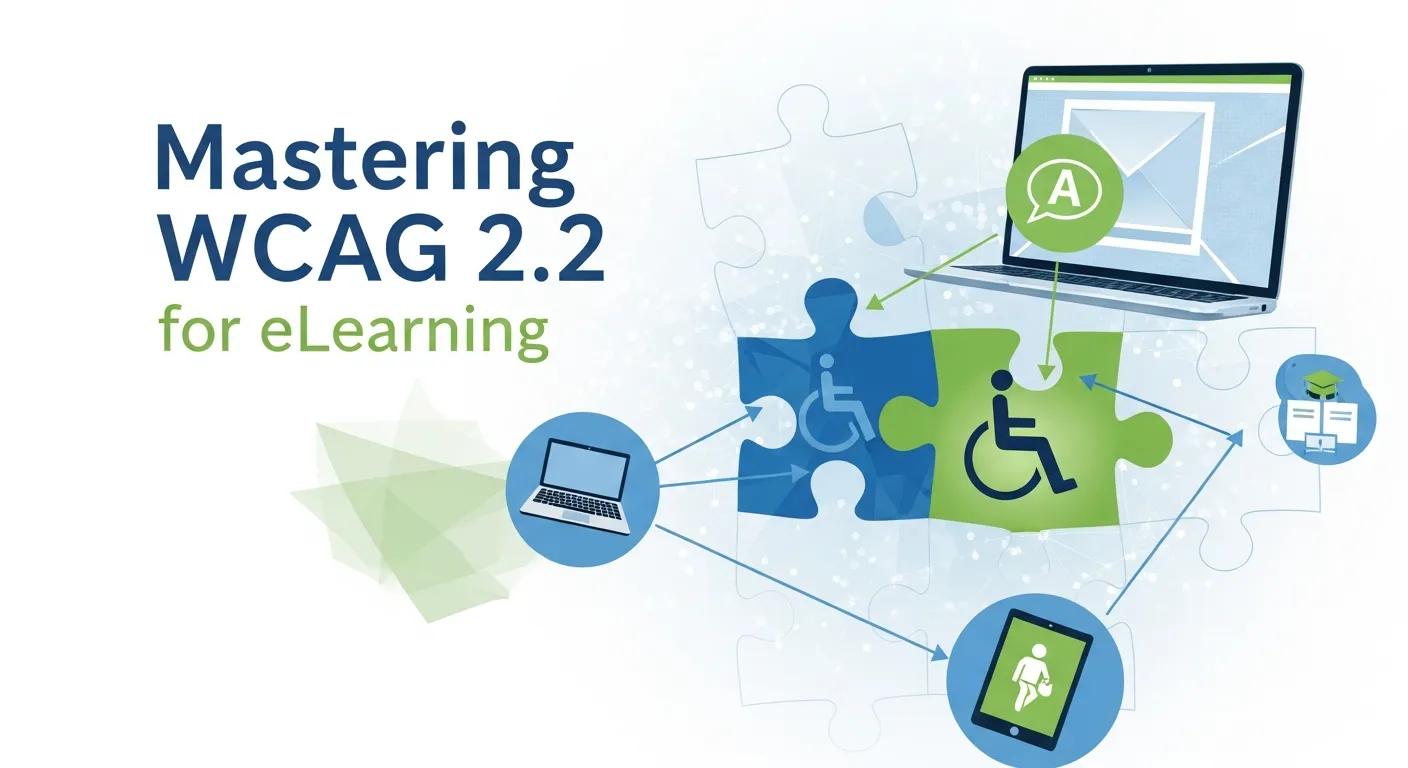
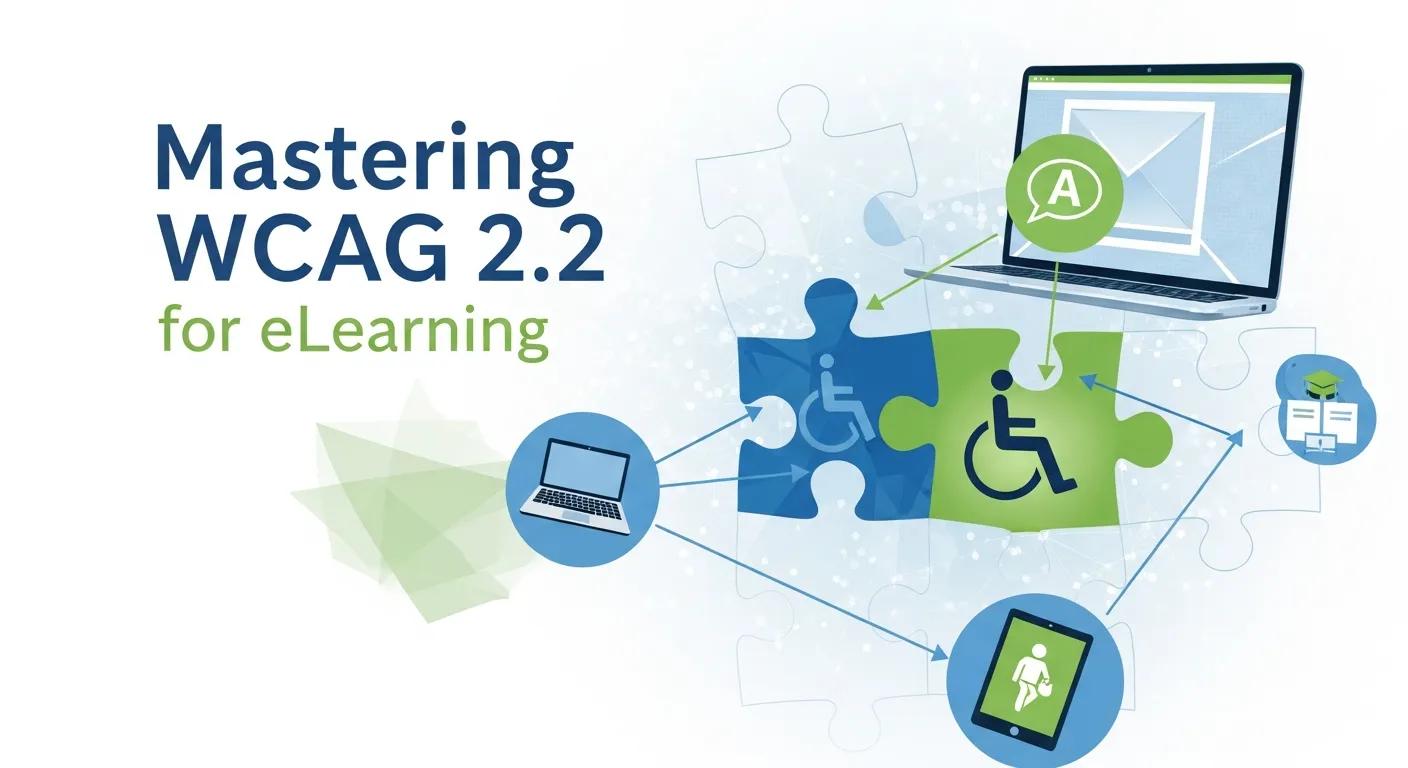
Mastering WCAG 2.2 for eLearning
Accessible online learning starts with intentional design that follows WCAG 2.2 so every student can perceive, operate, understand, and engage with course material. This guide breaks down what WCAG 2.2 means for virtual courses, shows how the POUR principles map to instructional design, and highlights which success criteria to prioritize when authoring modules, assessments, and media. You’ll get concrete patterns for visual, auditory, motor, and cognitive accessibility; a pragmatic testing workflow that blends automated scans with human testing; and operational approaches to ongoing monitoring. We also compare tools, explain how assistive technologies interact with LMS content, and include EAV-style tables and checklists you can use during audits and production. Read on for prioritized success criteria, step-by-step design practices, recommended testing methods, and KPIs to keep your eLearning accessible over time.
What Are the WCAG 2.2 Guidelines for Accessible eLearning?
WCAG 2.2 defines technical success criteria organized into conformance levels (A, AA, AAA) that make digital content perceivable, operable, understandable, and robust for learners with disabilities. The standard specifies outcomes—like providing text alternatives for non-text content and ensuring keyboard operability for interactive elements—so students using assistive technologies can complete learning tasks. Applying WCAG to eLearning means mapping these success criteria to course elements such as content pages, quizzes, SCORM/xAPI packages, and timed assessments to remove barriers. Below we map priority WCAG 2.2 criteria to common course components and give practical examples to guide remediation and design choices.
Which WCAG 2.2 Success Criteria Apply to Online Courses?
Here are high-impact WCAG 2.2 criteria with clear eLearning examples to help instructional designers prioritize fixes and authoring habits. Each row links a success criterion to its requirement and a concrete example relevant to modules, quizzes, or video assets.
| Success Criterion | Requirement | eLearning Example |
|---|---|---|
| Non-text Content | Provide text alternatives | Alt text for diagrams and detailed descriptions for complex charts embedded in course pages |
| Time-based Media | Captions and transcripts for audio/video | Captioned lecture recordings and searchable transcripts paired with downloadable slide decks |
| Keyboard Accessible | All functionality via keyboard | Quiz navigation, interactive simulations, and custom widgets operable with Tab, Enter, and Space |
| Focus Visible | Clear focus indicators for interactive controls | Persistent, high‑contrast outlines on buttons and form fields in registration and assessment flows |
| Error Identification | Clear error messages and suggestions | Form validation that explains answer errors with corrective guidance and ARIA roles for error announcements |
This mapping helps course teams focus on changes that deliver the largest accessibility gains—especially for multimedia and assessments. With these priorities in hand, designers can apply the POUR principles more effectively across course workflows.
How Do the POUR Principles Guide eLearning Accessibility?
The POUR framework—Perceivable, Operable, Understandable, Robust—maps directly to design patterns for online learning and provides a practical checklist for auditing course content. Perceivable means learners can sense content: add captions, transcripts, and alt text so audio and images are accessible. Operable requires that navigation and controls work without a mouse, so quizzes, menus, and media players must expose keyboard events and visible focus. Understandable calls for plain language, consistent navigation, and descriptive labels to support cognitive accessibility. Robust emphasizes semantic HTML and ARIA when appropriate so assistive technologies like screen readers can reliably interpret course structure and interactions. Applying POUR helps teams prioritize fixes that improve usability for the broadest group of learners.
How Can You Design Accessible eLearning Content?
Designing accessible eLearning blends content strategy, usable UI patterns, and clear authoring rules to remove barriers for visual, auditory, motor, and cognitive needs. Start with semantic HTML and structured headings, then add accessible interaction patterns and media practices so content works with screen readers, magnifiers, and keyboard-only navigation. Below is a practical checklist of design rules instructional designers and content authors can apply during storyboarding, build, and review stages.
- Use semantic headings and page landmarks so assistive technologies can navigate content efficiently.
- Maintain sufficient color contrast and avoid conveying meaning by color alone to support visual accessibility.
- Provide captions, transcripts, and audio descriptions for all time-based media to meet hearing and visual needs.
- Make interactive elements keyboard-operable, include visible focus indicators, and follow a predictable tab order.
- Use plain language, consistent labels, and short cognitive chunks to support learners with cognitive disabilities.
These practices set a reliable baseline that, combined with testing, reduces major accessibility gaps and improves learner outcomes. The sections that follow unpack visual/auditory rules and keyboard/focus strategies with hands‑on details.
What Are Best Practices for Visual and Auditory Accessibility?
Visual and auditory accessibility is about making information available without relying on a single sensory channel. For visual content, meet WCAG contrast thresholds (4.5:1 for normal text, 3:1 for large text), choose readable typefaces with generous line-height, and support scalable sizes for magnification and responsive layouts. For audio and video, provide accurate captions, synchronized transcripts, and audio descriptions when visuals convey essential steps. When authoring captions, include speaker labels and non‑speech information so deaf and hard‑of‑hearing learners don’t miss context. These practices not only support compliance but also make learning materials easier to discover, review, and retain across modalities.
How to Implement Keyboard Navigation and Focus Indicators?
Keyboard accessibility and visible focus indicators let learners who can’t use a mouse complete course tasks and assessments. Ensure all interactive components are reachable via Tab and Shift+Tab, that Enter/Space activate controls, and that modal dialogs don’t trap keyboard focus. Apply consistent, high‑contrast focus styles with persistent outlines so users can track where they are on the page and inside embedded players. Verify tab order to match visual order and use ARIA attributes only where necessary to expose roles and states for custom components, ensuring assistive technologies announce control purpose and changes. Strong keyboard support improves completion rates for learners relying on alternate input methods.
What Legal Requirements Govern eLearning Accessibility?
Several legal frameworks affect eLearning accessibility depending on jurisdiction and the institution delivering courses, and these laws often reference WCAG as the technical benchmark. In the United States, expectations for public entities and federally funded programs align with Section 508 and ADA interpretations, while in the European Union the European Accessibility Act sets requirements for digital services. Organizations offering public-facing education or government-funded training should map obligations to applicable statutes and adopt WCAG 2.2 Level AA as a practical compliance target. Knowing the legal context helps teams prioritize remediation where risk, public access, and enrollment impact are highest.
How Do ADA, Section 508, and the European Accessibility Act Impact eLearning?
ADA, Section 508, and the European Accessibility Act differ in scope but converge on the principle that digital services must be accessible. For eLearning this affects LMS platforms, course materials, and third‑party vendor content. Public institutions—and many private organizations—must ensure registration, course delivery, and assessment systems don’t exclude learners with disabilities, and they must be ready to provide reasonable accommodations and accessible alternatives. Non‑compliance can lead to complaints, required remediation, and reputational harm, so proactive auditing and remediation are essential. Mapping specific obligations to course assets—LMS interfaces, vendor content, and video libraries—lets teams focus resources where law and learner needs intersect.
What Are the Benefits Beyond Legal Compliance?
Accessible eLearning delivers clear pedagogical and operational benefits beyond reducing legal risk. Accessibility increases reach, improves learning outcomes for diverse students, and reduces the need for individualized accommodations by addressing common barriers up front. It also helps SEO, supports content reuse, and simplifies long‑term maintenance by enforcing semantic structure and metadata practices that benefit all users. Investing in accessibility demonstrates institutional commitment to equity, lowers support costs for accommodations, and ultimately improves the learning experience for everyone.
Which Tools and Techniques Help Ensure WCAG Compliance in eLearning?
A blended testing strategy—automated scanning, manual inspection, and human user testing—produces the most reliable accessibility outcomes for complex eLearning systems. Automated tools quickly find surface issues like missing alt attributes or contrast failures, while manual checks reveal semantic and interaction problems automated tools miss. User testing with people who use screen readers, keyboard navigation, or cognitive supports exposes real barriers and validates fixes. Below is a short comparative list of common tool types and when teams should use them.
Research reinforces that automated tools are useful, but human evaluation is essential for a complete assessment.
WCAG Compliance Evaluation: Automated & Human Testing for University LMS
This study evaluated accessibility features of the Arabic versions of thirty‑three Saudi public and private university sites against thirty‑eight WCAG success criteria using two automated tools (AChecker and TAW). AChecker flagged 11% known problems and 89% likely or potential issues; TAW reported 26% accessibility problems and 74% warnings. The results show that known issues require immediate fixes, while likely and potential problems need human review to confirm and resolve.
Accessibility evaluation of Arabic University websites for compliance with success criteria of WCAG 1.0 and WCAG 2.0, M Akram, 2023
- Automated checkers are best for rapid surface audits and regression testing during builds.
- Browser dev tools help debug focus order, ARIA roles, and keyboard behavior interactively.
- Manual walkthroughs and screen reader testing confirm semantic correctness and the real user experience.
These tool types work best when combined into a repeatable workflow that assigns roles—content author, QA, accessibility specialist—and integrates checks into sprint cycles. The next subsection lays out a stepwise testing workflow to operationalize this approach.
What Accessibility Testing Methods Are Effective for Online Courses?
Effective eLearning testing layers automated scans, focused manual inspections, and representative user testing into a repeatable workflow that fits authoring schedules and release cycles. Start with automated scans to surface immediate issues, follow with manual reviews of semantic HTML, form labeling, and keyboard flows, then run scheduled user tests with people who use screen readers, magnifiers, or other supports to validate real‑world accessibility. Define roles and checklists: content authors resolve content issues, QA verifies interactive behavior, and accessibility specialists triage complex failures. This layered method ensures both technical conformance and real usability are addressed before courses go live.
Studies show that relying solely on automated tools can miss significant barriers that actual learners encounter.
E-Learning Accessibility: Automated vs. Student-Centered Evaluation
In this study, sample online units were evaluated by automated tools and by student participants (in moderated and unmoderated sessions). Nearly all students encountered one or more accessibility barriers while completing the units, yet the automated tools did not predict many of these problems and instead flagged potential issues that weren’t relevant to the participants. The study underscores the need for student‑centered evaluation in addition to automated checks and guideline conformance.
Evaluating e‑learning accessibility by automated and student‑centered methods, R Owston, 2016
How Do Assistive Technologies Integrate with eLearning Content?
Assistive technologies—screen readers, magnifiers, voice input—interpret course content based on semantic structure and exposed accessibility metadata, so clean HTML and appropriate ARIA attributes directly affect compatibility. Screen readers rely on heading hierarchies and landmarks to navigate modules, announce form labels using accessible name computation, and use ARIA live regions for dynamic updates. Common problems occur with custom widgets that lack proper roles or keyboard handling; fixing these typically requires adding ARIA roles, states, and keyboard event handling that mirror native controls. Regular compatibility tests with tools like NVDA, JAWS, and browser magnifiers confirm that content structure and interactive components behave predictably across assistive tech.
This integration matters because assistive technology and Universal Design for Learning are tightly aligned—both aim to make education accessible by design.
Assistive Technology & UDL for Accessible Online Learning
This dissertation provides Assistive Technology (AT) professionals with reusable tools and techniques to increase the reach, efficiency, effectiveness, and accessibility of online training. Accessibility is the central concern for AT in education, and following best practices—closely tied to Universal Design for Learning—ensures courses are usable by the widest possible audience.
Towards Universally Designed Assistive Technology E‑Learning, 2012
How Do You Create Accessible Multimedia for Online Learning?
Making multimedia accessible means producing captions, transcripts, and audio descriptions when content relies on audio or visuals, and optimizing images and players so assistive technologies can navigate and interpret them. Accurate captions and searchable transcripts meet WCAG requirements and improve comprehension and retention for all learners. Pair media with clear metadata and use players that support keyboard controls, caption toggles, and accessible playback rates. Below is a concise checklist to follow during multimedia production and publishing.
- Add synchronized captions that include speaker labels and non‑speech sounds for all instructional videos.
- Provide full transcripts for audio-only resources and supplemental transcripts for videos.
- Include audio descriptions when visual content conveys essential information not present in the audio track.
What Are the Requirements for Captions, Transcripts, and Audio Descriptions?
Captions must be accurate, synchronized, and include non‑speech information to provide equivalent access to spoken and acoustic content; transcripts complement captions with searchable text for study and review. Audio descriptions are necessary when visual‑only content conveys information essential to learning objectives—examples include demonstrations or diagram walkthroughs—and can be delivered as a separate track or an extended transcript. Typical workflows use automated captioning followed by human review to correct errors, QC transcripts for speaker separation and tagging, and create concise scripts for audio‑described segments. These deliverables improve accessibility and meet prioritized WCAG criteria for time‑based media.
How to Optimize Images and Videos for Accessibility?
Optimizing images and videos means meaningful alt text, descriptive filenames, and accessible player controls so learners using assistive tech can consume media independently. Write alt text that explains the instructional purpose of an image rather than decorative details, and provide longer descriptions for complex charts or stepwise illustrations. Use responsive media and players that expose keyboard controls, caption toggles, and time controls for users who need custom playback. Consistent metadata and naming conventions help content managers track accessibility coverage across libraries and ensure every asset includes required accessibility elements.
| Multimedia Type | Required Accessibility Element | Implementation Notes |
|---|---|---|
| Lecture Video | Captions and synchronized transcript | Use a caption editor plus human QC to ensure accuracy |
| Demonstration Video | Captions plus audio description when visuals convey essential steps | Provide a separate audio‑described track or an extended transcript |
| Audio Podcast | Full transcript with timestamps | Include speaker markers and show notes for easier navigation |
This table clarifies deliverables by media type so production teams can standardize processes and keep accessibility consistent across course catalogs.
How Can You Monitor and Maintain eLearning Accessibility Over Time?
Accessibility is an ongoing program, not a one-time checklist. Establish KPIs, scheduled audits, and feedback loops to embed accessibility into content operations and product lifecycles. Track indicators like percent of captioned videos, counts of automated issues by severity, time‑to‑fix for high‑priority defects, and learner satisfaction related to accessibility. Combine automated monitoring for regressions with quarterly manual reviews and annual comprehensive audits to catch systemic problems and stay aligned with WCAG updates or legal changes. A governance model that assigns ownership—authors handle content fixes, platform teams manage player and LMS accessibility, and accessibility specialists lead policy and complex remediations—keeps progress measurable and sustainable.
What KPIs and Tools Support Continuous Accessibility Monitoring?
Choose KPIs that quantify coverage, remediation speed, and user outcomes so teams can measure progress and prioritize work. Useful indicators include percentage of core content meeting WCAG AA, average time to remediate priority issues, caption coverage across media libraries, and user‑reported accessibility incidents. Automated scanners can feed dashboards with issue counts while manual sampling and user feedback validate real‑world impact. Set a reporting cadence and dashboards that combine automated metrics with qualitative user reports so decision‑makers have the insights needed to invest in targeted remediation.
- Track coverage metrics such as percent of videos captioned and percent of pages using semantic headings.
- Measure remediation velocity with average time‑to‑fix for high‑severity accessibility defects.
- Collect learner feedback and accessibility incident tickets to surface issues automated tools miss.
These KPIs give a balanced view of compliance and usability, helping organizations prioritize fixes that improve learner access and reduce long‑term risk.
How Often Should Accessibility Audits and Updates Be Conducted?
Use a layered audit cadence: lightweight automated scans and spot checks each sprint, quarterly manual reviews of key learning paths, and a full accessibility audit annually or after major LMS or platform changes. Trigger ad‑hoc audits when new WCAG versions or legal developments appear, or when significant new content types (for example, immersive simulations) are introduced. Align audit responsibilities to release cycles so accessibility reviews happen before major launches and remediation can be scheduled in sprint backlogs to prevent backlog build‑up. This cadence balances proactive prevention with practical resource allocation to maintain accessible learning experiences over time.
| Tool | Capability | Best-use Scenario |
|---|---|---|
| Automated Scanner | Surface-level issue detection (alt text, contrast) | Continuous integration checks during content publishing |
| Manual Audit Checklist | Semantic and interaction validation | Quarterly reviews of representative course pathways |
| User Testing Protocols | Real-world usability validation | Pre-launch validation for major course releases |
Combining tools with scheduled activities provides both breadth and depth for monitoring accessibility, enabling timely remediation and steady improvement.
In conclusion,
Enhancing the Web Content Accessibility Guidelines (WCAG) compliance within your organization’s Learning Management System (LMS) is not just a regulatory necessity; it is a vital step towards creating an inclusive educational environment for all users. Implementing WCAG standards ensures that individuals with disabilities have equal access to learning resources, fostering a culture of diversity and inclusion within your organization. By addressing accessibility, you not only fulfill legal obligations but also enhance your brand reputation and improve user engagement, allowing everyone to benefit from your educational offerings.
If you’re ready to take the next step towards making your LMS more accessible, we invite you to book a free consultation with Markanyx. Our team of experts is dedicated to helping you understand your current accessibility status and guide you through implementing effective strategies tailored to your organization’s unique needs. Don’t let accessibility barriers stand in the way of your goals—contact us today and empower your organization to provide equitable learning opportunities for all.